Tap the back twice.
Set up the NocGO shortcut with Back Tap once. Open the message, booking, or notice you want to remember, then tap the back of your iPhone twice to capture it.
 NocGO.
COMING SOON · FOR IPHONE
Turn a chat, booking, or notice into calendar and reminder drafts. NocGO picks out the date, time, and place so you can skip the copying.
Back Tap requires a one-time setup
Coffee on Friday? Let’s meet at 10:30 at Pine & Co. ☕
The back of your iPhone
Two taps. Capture the screen.
NocGOCoffee at Pine & Co.
Friday, 23 October · 10:30–11:30
HOW IT WORKS
Set up the NocGO shortcut with Back Tap once. Open the message, booking, or notice you want to remember, then tap the back of your iPhone twice to capture it.
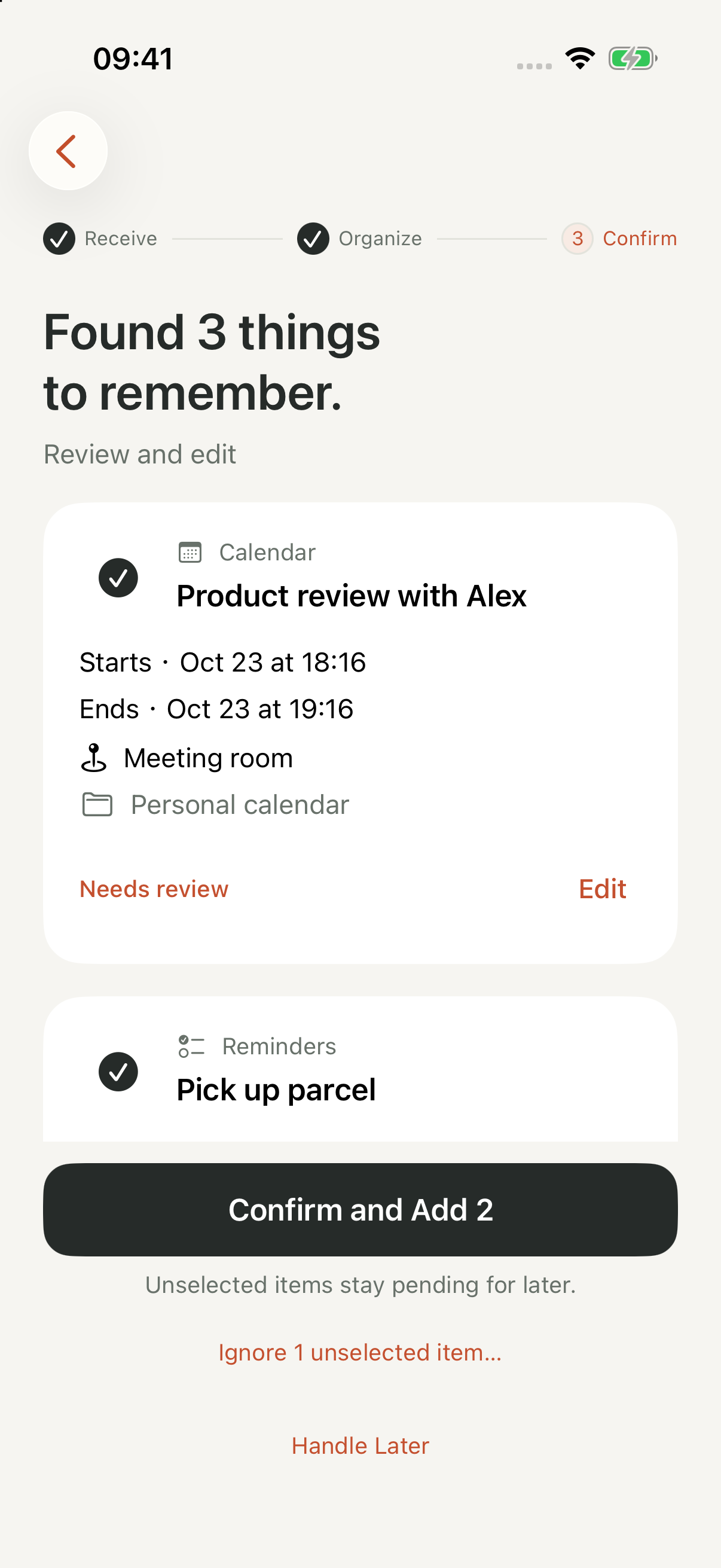
NocGO turns the screenshot into a draft with the date, time, place, and task. Check the details and choose your calendar or reminders list.
Only the items you confirm are added. Keep the remaining drafts for later.
See events and tasks together. Edit the details and choose what to add.
FOR THE PLANS LIFE SENDS YOU
01 / WORK
A meeting from a chat becomes a calendar draft you can check.
Meeting details → Calendar02 / OUT & ABOUT
Keep the date and place from a booking screenshot within reach.
Booking screenshot → Travel plan03 / EVERYDAY
Turn a quick thought into a reminder for later.
Voice or text → ReminderKEEP YOUR FAMILIAR TOOLS
Events in your calendar. Tasks in your reminders.
In testing
In testing
Choose whether to use cloud recognition, and disconnect linked services at any time.
CHOOSE WHAT FITS THE TASK
Siri is convenient for “remind me to call tomorrow afternoon.” NocGO brings events and tasks from screenshots into one place to add context, edit, and select.
Apple also offers screen understanding and screenshot actions, with availability depending on software, device, language, and region.
Compare NocGO and SiriSTART WITH WHAT YOU NEED
Turn the things you need to do into editable reminder drafts.
GuideChoose a method and avoid the common date and time mistakes.
Setup guideSet up the gesture once, then review what you capture.
Use caseSeparate the appointment, the follow-up task, and the plans that changed.
ComparisonUnderstand the overlap and choose a workflow for the task.
FAQ
Add the NocGO shortcut, then assign it in iPhone Settings → Accessibility → Touch → Back Tap → Double Tap. Once set up, open the page you want to capture and tap the back of your unlocked iPhone twice.
Not yet. Leave your email for early-access and launch news.
No. NocGO prepares a draft for you to review and edit. It adds an event or task only after your confirmation.
With your permission, cloud recognition sends your selected screenshot or text to a third-party AI service. Voice transcription runs on-device; audio is not uploaded for recognition. See the privacy policy for data use, retention, and your choices.
Google Calendar is in testing and is not yet available to everyone.
Only NocGO early-access and launch news. Contact support from your signup address to unsubscribe or delete your signup.
COMING SOON
Leave your email for early-access and launch news.