App comparison
The best calendar apps for iPhone in 2026
The best calendar app for iPhone depends on how you enter plans and which account holds them. Start with Apple Calendar for a built-in option, Google Calendar for Google accounts, or Outlook for Microsoft workflows. This comparison covers seven planning apps and NocGO, our screenshot capture companion.
Choose an app in three steps
- Identify the calendar account you already use, then list the devices where you need to read and edit the same events.
- Try your actual daily task: enter an appointment, change its time, find it from a widget and check the destination account.
- Compare the required features with the current free or paid plan. Keep your existing calendar unless a specific problem justifies moving.
How we evaluated these apps
We compared documented capabilities, not timed hands-on trials. The five dimensions are entry workflow, widgets, natural-language input, screenshot capture and total access cost across your devices. “Planning speed” here means the steps a workflow requires; we have not measured seconds or ranked recognition accuracy.
Official product and support pages were reviewed on 27 October 2026. Features can depend on software version, region and subscription. “Not verified” means the cited material did not establish the capability, not that the app cannot do it. NocGO is our own app, and we include it as a capture companion rather than a full calendar replacement.
The eight apps at a glance
Choose by the job you need to do. Prices below describe access models; they are not a quote for your country or billing period. The table lists representative platforms rather than promising feature parity.
| App | Pricing model | iPhone widgets | Natural-language entry | AI screenshot entry | Other platforms |
|---|---|---|---|---|---|
| Apple Calendar | Included | Yes | Supported Apple features | Supported system features | iPad, Mac; iCloud web |
| Google Calendar | Free personal; paid Workspace options | Yes | Check account and feature availability | Not verified here | Android, web |
| Microsoft Outlook | Free consumer use; work licensing varies | Yes | Check account and feature availability | Not verified here | Android, Windows, Mac, web |
| Fantastical | Free and Premium tiers | Yes | Yes | Not verified; email extraction documented | iPad, Mac, Windows, Googlebook |
| BusyCal | Paid iOS purchase; Mac separate | Yes | Yes | Not verified here | iPad, Mac |
| Calendars by Readdle | Free core; optional subscription | Yes | Yes | Magic Input advertised; check access | iPad, Mac |
| Timepage | Trial, then membership | Yes | Not verified here | Not verified here | iPad, Mac, Apple Watch |
| NocGO | Check availability; app pricing not listed here | Not offered as a planner | Typed or transcribed instructions | Draft review workflow | iPhone app |
Where each app fits, and its tradeoff
Apple Calendar: a built-in starting point
Apple Calendar suits people who want to keep appointments in the system app. It connects with supported accounts and integrates with other iPhone features. Newer Apple Intelligence features can add event-entry options on eligible devices. Start here if your main need is seeing and editing an existing schedule. Tradeoff: those newer intelligent actions have hardware, software, language and region requirements. An iPhone that runs Calendar does not automatically support every advertised input feature. Check your actual configuration before choosing it for screenshot capture.
Google Calendar: for a Google-centered schedule
Google Calendar fits people whose invitations, shared calendars and meeting workflow already live in Google. Its iPhone app and web interface give you access to that account without moving the calendar data. Google documents iPhone widgets for checking upcoming events. Tradeoff: file import is a computer workflow in Google’s documentation. If importing .ics attachments from your phone is a recurring task, check that extra step before switching. Account-specific or paid features also need checking separately from basic event viewing.
Microsoft Outlook: mail and meetings together
Outlook’s mobile guidance covers a combined email and calendar workflow, including a calendar widget. It is a sensible candidate when your organization already works through Microsoft accounts and meeting invitations. Microsoft states that consumer mobile use is free; workplace licensing and access rules can differ. Tradeoff: the app combines inbox and scheduling responsibilities. If you want only a compact calendar, that broader interface may be more than you need. Your administrator may also control which accounts and features you can use.
Fantastical: for frequent written event entry
Fantastical emphasizes natural-language creation, multiple calendar views and scheduling features. It also documents extracting event details from forwarded email. Consider it if you repeatedly type complete appointment sentences and want consistent planning tools across its supported platforms. Tradeoff: the free tier and Premium subscription have different capabilities, so the feature that attracts you may require ongoing payment. Photo attachments are not automatically evidence of screenshot-to-event extraction. Check that exact workflow independently if screenshots, rather than typed requests or forwarded emails, are your main input.
BusyCal: for configurable calendar views
BusyCal for iOS offers configurable views, natural-language entry and task integration. Its widget documentation explains using calendar sets across widgets. It suits people who want to tune how multiple calendars appear instead of accepting one default presentation. Tradeoff: the iPhone/iPad purchase and Mac licensing are separate, as the store explains. Include both if you need desktop and phone use. Configuration also takes decisions: try your real accounts and preferred views before assuming more controls will simplify your day.
Calendars by Readdle: planning plus assisted input
Calendars by Readdle combines events and tasks across Apple devices. Its official page describes natural-language entry, widgets and an AI assistant with Magic Input for screenshots, photos and files. That makes it relevant to capture as well as planning; NocGO is not the only product exploring this workflow. Tradeoff: advanced AI assistance belongs to the product’s optional paid capabilities, and the page also advertises early access. Confirm current access, included features and the offer for your account before relying on screenshot input for a daily routine.
Timepage: for a visual view of your week
Timepage emphasizes a timeline, a month heatmap, weather and travel information. It supports Apple devices and advertises a trial followed by membership. Consider it if you prefer reading your week visually and checking how busy individual days are. Tradeoff: continuing beyond the trial requires the relevant membership, and its advertised platforms do not provide an Android phone counterpart. Do not assume the related Actions app’s natural-language features apply identically to Timepage. Try your essential entry and reminder workflow during the trial before committing.
NocGO: a companion for plans found in screenshots
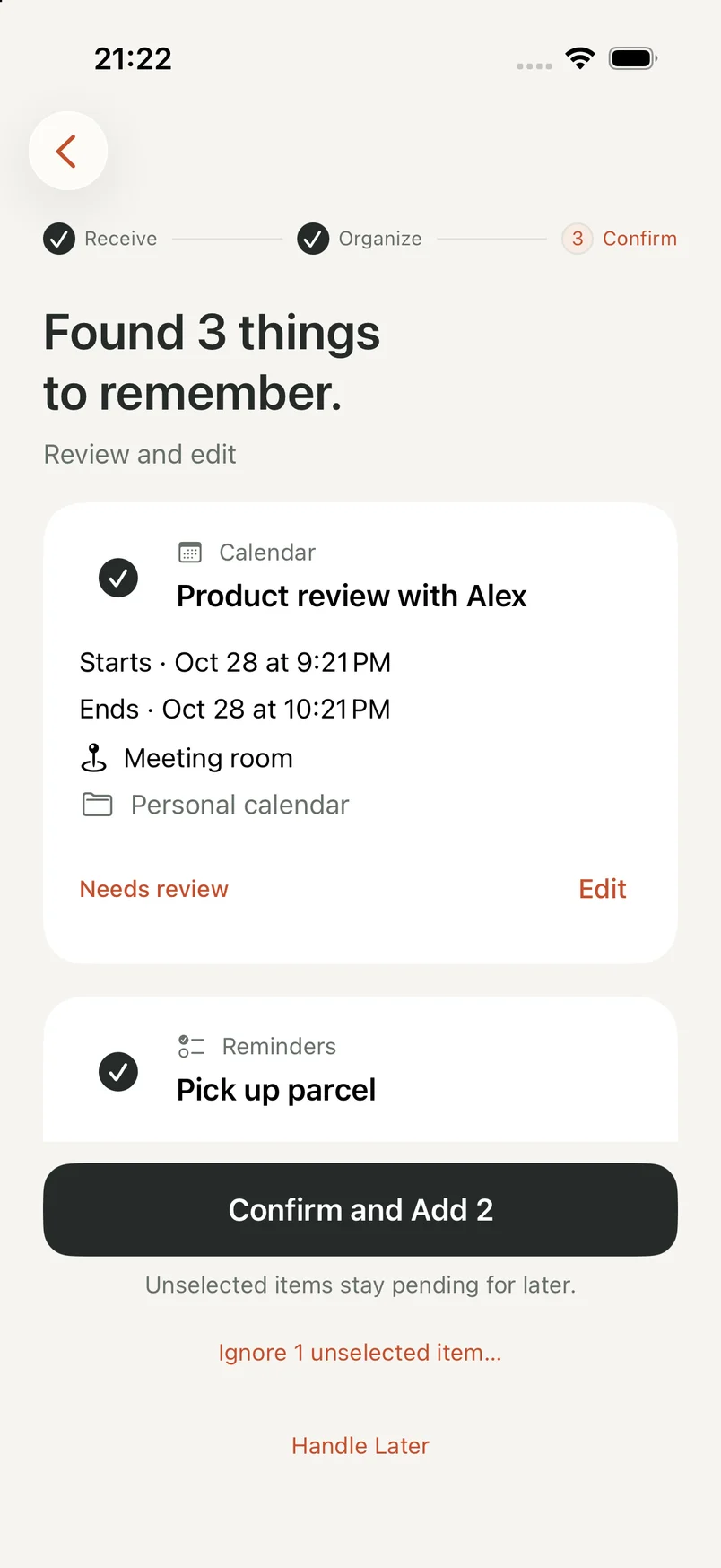
NocGO is our own app. You choose a screenshot, optionally add context, submit for cloud recognition, and review calendar or reminder drafts before confirming. It complements the destination calendar instead of replacing its weekly planning views. Tradeoff: recognition requires a network connection and your consent, and the result still needs checking. Google Calendar and Todoist remain in testing. The actual app preview below shows review controls with sample plans; it is not evidence of a measured speed advantage. Use the availability button for current access.
Which calendar app should you pick?
Start with Apple Calendar for a simple system workflow, Google Calendar for a Google-centered account, and Outlook for Microsoft-oriented mail and meetings. Compare Fantastical, BusyCal, Readdle and Timepage when a specific input or display need remains unmet.
If the missing step is getting plans out of images, compare NocGO vs. Siri and the screenshot-to-text guide. Keep your calendar choice separate from your capture method. You may solve the problem without migrating the place where you manage your week.
Frequently asked questions
What is the best free calendar app for iPhone?
Apple Calendar is a practical starting point if the built-in app already handles your accounts. Google Calendar suits people who organize through Google, while Outlook combines Microsoft-oriented mail and scheduling. The right free option depends on your provider and required features. This comparison does not name a universal winner or assign measured scores.
Can a calendar app turn screenshots into events?
Some apps and supported Apple system features offer that workflow. Readdle describes screenshot input through its AI assistant, while NocGO prepares editable event and reminder drafts from submitted screenshots. Availability, permissions and pricing differ. Read the resulting fields carefully: an image can contain an old time, a correction or an unresolved date.
Is NocGO a replacement for my calendar?
NocGO is a capture companion, and it is our own app. It focuses on preparing drafts from screenshots and instructions, then saving the items you confirm to supported destinations. You continue using your calendar to manage the resulting schedule. Check the availability notice on this page before planning an app workflow around it.
Why are exact subscription prices not listed here?
Prices vary by country, billing period, promotions and included features. This comparison identifies the pricing model and links to official product information checked on 27 October 2026. Check the offer shown to your account before subscribing. We have not purchased every plan or verified every feature on every listed platform.
Last updated: