Calendar guide
How to open an .ics file on iPhone
To open an .ics file on iPhone, start with an attachment in Apple Mail and review the calendar preview before adding it. Safari and Files may show a preview without an import button. The steps below explain those paths and the fallback when adding is unavailable.
Check the file before you open it
- Confirm that the attachment ends in .ics and comes from the person or service you expect. Keep the original message for comparison.
- Check the event’s date, time zone and destination account. If the content looks wrong, inspect the file before trying another import.
- Use the appropriate Mail, Safari or Files path below. After confirming, open Calendar on the event date and check whether it was added once.
Open an ICS attachment from Mail
Apple Mail is the documented starting point for importing an .ics attachment on iPhone. Apple’s account setup guide distinguishes importing a file from subscribing to a calendar URL. Use the import route for a one-off attachment.
- Open the message in Apple Mail, using an account you have already set up there.
- Tap the .ics attachment and wait for its event preview or available calendar actions.
- Review the title, start, end, location and selected calendar. Use the Add control if it appears, then confirm.
- Open Calendar at the event date and check the saved entry. If it is already present, stop instead of adding another copy.
The precise button label can depend on the system version and whether the file contains one event or several. Treat any unfamiliar subscription prompt separately. A single event should not require silently subscribing to a remote calendar you did not intend to follow.
Open a calendar file from Safari
Safari can open a calendar link or save its file, but it does not always expose the same import interface as Mail. Start by checking whether you received an actual .ics attachment, a subscription URL or a webpage that merely describes an event.
- Open the trusted link in Safari. If you are inside another app’s browser, use its menu to open the link in Safari when available.
- Review the preview or save the .ics file if the browser offers that action.
- If an event Add control appears, inspect its details and confirm the destination. If it does not, use the Mail fallback below.
A website saying “added” cannot prove that Calendar saved the event. File delivery and calendar creation are different operations. The ICS file format guide explains why a calendar file is a portable description, not permission to modify your calendar.
Open a saved file from Files
Files can help you locate and preview an attachment, but a preview alone is not a calendar import. Find the file in the folder where you saved it, rather than searching only for today’s events in Calendar.
- Open Files, locate the .ics file and tap it to see the available preview.
- Check the Share menu for a useful action on your device. Do not expect Calendar to appear on every configuration.
- If there is no import action, attach the file to a message you send yourself using your own mail app. Open that message in Apple Mail.
You decide whether to send the file by email. Consider the event’s notes and who can access that mailbox. This website’s local viewer does not send the attachment for you. You can also use a computer calendar’s supported import function and let the intended account sync to your phone.
What to do when tapping the file does nothing
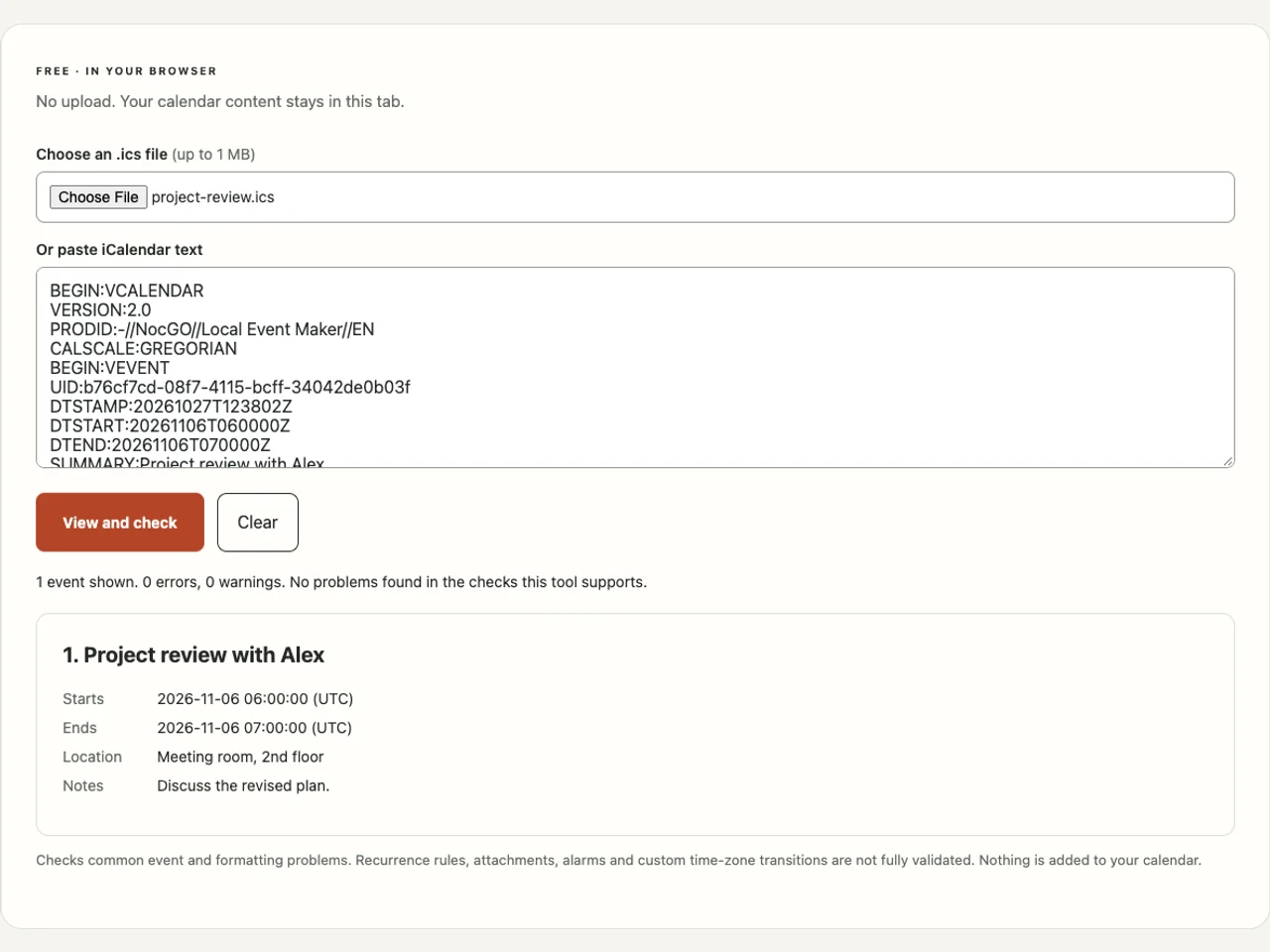
First separate a file problem from an import-interface problem. Paste or open the file in the ICS viewer and check for missing DTSTART, malformed dates or broken component endings. Read warnings carefully: an unsupported recurrence feature is not the same as a corrupted file.
If the file is an HTML error page renamed to .ics, ask the sender for a fresh attachment. If it opens correctly but offers no Add action, retry through Apple Mail. If you cannot use Mail, follow your provider’s computer import instructions or enter a single event manually.
A missing calendar can also mean the account is disabled or the destination is read-only. Check Calendar’s visible calendar list and account settings. Search the correct event date and title before retrying. Time-zone conversions may place the event at a different hour than the raw file shows.
Use the iCal event maker to create a small sample for comparison. A sample can help identify whether your import path works, but adding it changes your calendar. Remove any sample afterward if you do not need it. We have not timed these paths or verified every iPhone configuration.
Frequently asked questions
Can I open an ICS file on iPhone without a new app?
Apple documents importing .ics attachments from Mail. Open the attachment in Apple Mail and use the available calendar controls to review and add it. A different mail app may handle attachments differently. If no import control appears, try the file in Apple Mail or use your calendar service’s supported import route.
Why can I preview the file but not add the event?
A preview and an import action are separate features. The app that opened the file may only provide a reader or share sheet. Check whether you are using Apple Mail, Safari or Files, then follow that path. Also check that your destination calendar is writable and the file contains a valid event.
Is opening or checking the file free?
The built-in Mail, Files and Calendar routes do not require buying a separate ICS reader. This site’s viewer is also free and needs no account. Your email or calendar provider may have its own account requirements. Inspecting a file here does not sign you up for NocGO updates.
Can I import the file directly in the Google Calendar iPhone app?
Google’s documented file import route uses Calendar on a computer. Import the file into the intended Google calendar there, then view the synced event on your phone. Do not assume that an attachment preview in another iPhone app writes to Google Calendar. Confirm the account and event after the import.
Last updated: