Calendar guide
Create an .ics calendar file from text
To create an .ics file from text, put the event details into an iCalendar template and save it as plain text with an .ics extension. The local event maker handles formatting for you. This guide explains both the form and the manual route.
Create an ICS file from text in three steps
- Separate your source into a title, a complete date, a start time, a time zone, and any location or notes. Resolve relative dates before continuing.
- Enter those fields in the local event maker, or replace the example values in the plain-text template below. Choose an end time deliberately.
- Save the result with an .ics extension, check it in the viewer and import it into the intended calendar. Confirm the saved event before sharing the file.
Start with complete event details
Write down the intended appointment before you format anything. For example, “Project review on 6 November 2026, 14:00–15:00 in Shanghai” has an explicit date and local time. “Review tomorrow afternoon” leaves both the source date and the precise start unresolved.
Keep the appointment title separate from location and notes. If the source includes two possible times, choose the agreed one rather than combining them. A deadline with no start and end may belong in a reminder instead of a timed calendar block.
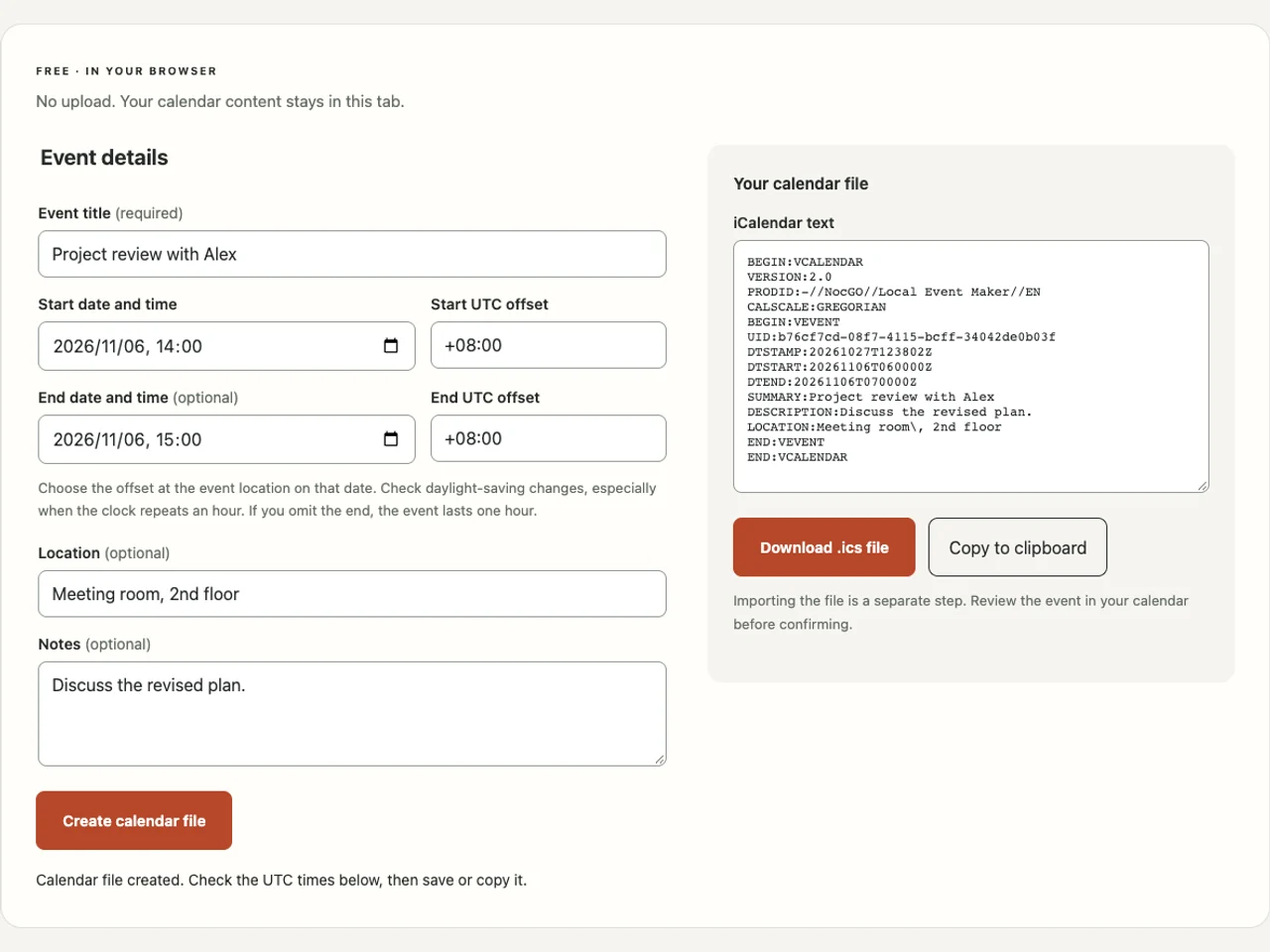
The iCal event maker lets you paste those text fields and choose times. It does not perform natural-language date recognition. That explicit form is useful when you want to check each field before producing a portable file.
Write the shortest useful calendar template
Use a plain-text editor and replace every sample value that describes the event. This example schedules an hour at 06:00 UTC, which is 14:00 at UTC+08:00. Its UID is illustrative; use a new unique identifier for a new event. DTSTAMP describes the entry’s timestamp, not the meeting start.
BEGIN:VCALENDAR
VERSION:2.0
PRODID:-//Example//Text Event//EN
BEGIN:VEVENT
UID:f0fa2abe-d2aa-491b-bda1-0bc166afca42
DTSTAMP:20261027T110000Z
DTSTART:20261106T060000Z
DTEND:20261106T070000Z
SUMMARY:Project review
DESCRIPTION:Discuss the revised plan.
LOCATION:Meeting room
END:VEVENT
END:VCALENDAR
Save the file as project-review.ics using UTF-8 plain text and CRLF line endings. Do not save it as a word-processing document or HTML. If the editor hides file extensions, inspect the final filename so that .txt is not silently appended.
The ICS file format guide explains the properties individually. The example deliberately omits guests, repeating rules and alarms. Adding those features requires more than appending an email address or writing “every week” in the title.
Preserve punctuation correctly
Inside text fields, escape a comma as \,, a semicolon as \;, and a backslash as \. Represent an intentional note line break as . A literal new line in the middle of a property can be mistaken for another calendar property.
Fold long content lines at no more than 75 UTF-8 bytes, starting each continuation with one space. Count bytes rather than visible letters, especially for emoji or non-English text. The generator takes care of this; manual editing requires attention to both escaping and folding.
Fix common text-to-ICS mistakes
Start by matching every BEGIN with the correct END. An event must sit inside a calendar container. Keep property names such as DTSTART unchanged, put a colon after the name, and avoid decorative quotation marks around complete lines.
Check whether a timestamp uses UTC or a local zone. Adding Z to a local clock time without converting it changes the appointment. For the example above, 140000Z would represent a different instant from the intended Shanghai afternoon. Use the offset that applies on the event date.
The end must follow the start. An appointment that crosses midnight needs the following date in its end field. All-day events use VALUE=DATE; their end date is exclusive. Do not mix an all-day start with a timed UTC end just to make the fields look complete.
Use the ICS viewer to surface common problems. It can find missing fields and malformed values, but it does not certify every possible recurrence or time-zone definition. Keep the original file so you can undo a manual change that affected the wrong property.
Import a copy and check the result
Open the finished file using your calendar’s supported import route, select the intended destination and confirm. Then navigate to the event date and compare the title, start, end and location against your source. A file preview does not prove that an event was created.
For phone-specific paths, follow open ICS on iPhone. If you import through a computer, allow the account to sync before deciding that the phone is missing the event. Check for an existing entry before importing the same file again.
A file is a snapshot. Editing your local copy does not update another person’s imported event. If the plan changes, communicate the correction clearly or use a proper calendar invitation. The syntax reference is RFC 5545; your calendar provider’s import guidance determines the final user action.
Frequently asked questions
Can I create an ICS file from text for free?
Yes. The local generator on this site works without a payment or account, and you can also write the file in a plain-text editor. Neither route needs permission to access your calendar. Importing the finished event is a separate action that you confirm in your chosen calendar application.
Why is my file called event.ics.txt?
Your editor may have added its default text extension after the name you entered. Check the complete filename and save a plain-text copy whose final extension is .ics. Renaming a rich-text document is not enough. Inspect its contents to make sure the first calendar line is BEGIN:VCALENDAR.
Can I use tomorrow or next Monday inside DTSTART?
No. DTSTART needs a structured date or date-time value, not a relative phrase. Work out the intended calendar date using the source message’s context. An old message saying “tomorrow” may refer to a day already past. Keep any useful original wording in the notes after confirming the actual date.
Can I send the same file to several people?
You can share a copy if its contents are appropriate for every recipient. Each person still needs to review and import it. This does not collect replies or keep their entries synchronized with yours. For a meeting that needs invitations and later updates, use your calendar’s guest invitation feature instead.
Last updated: