
Free browser tool
ICS viewer and validator
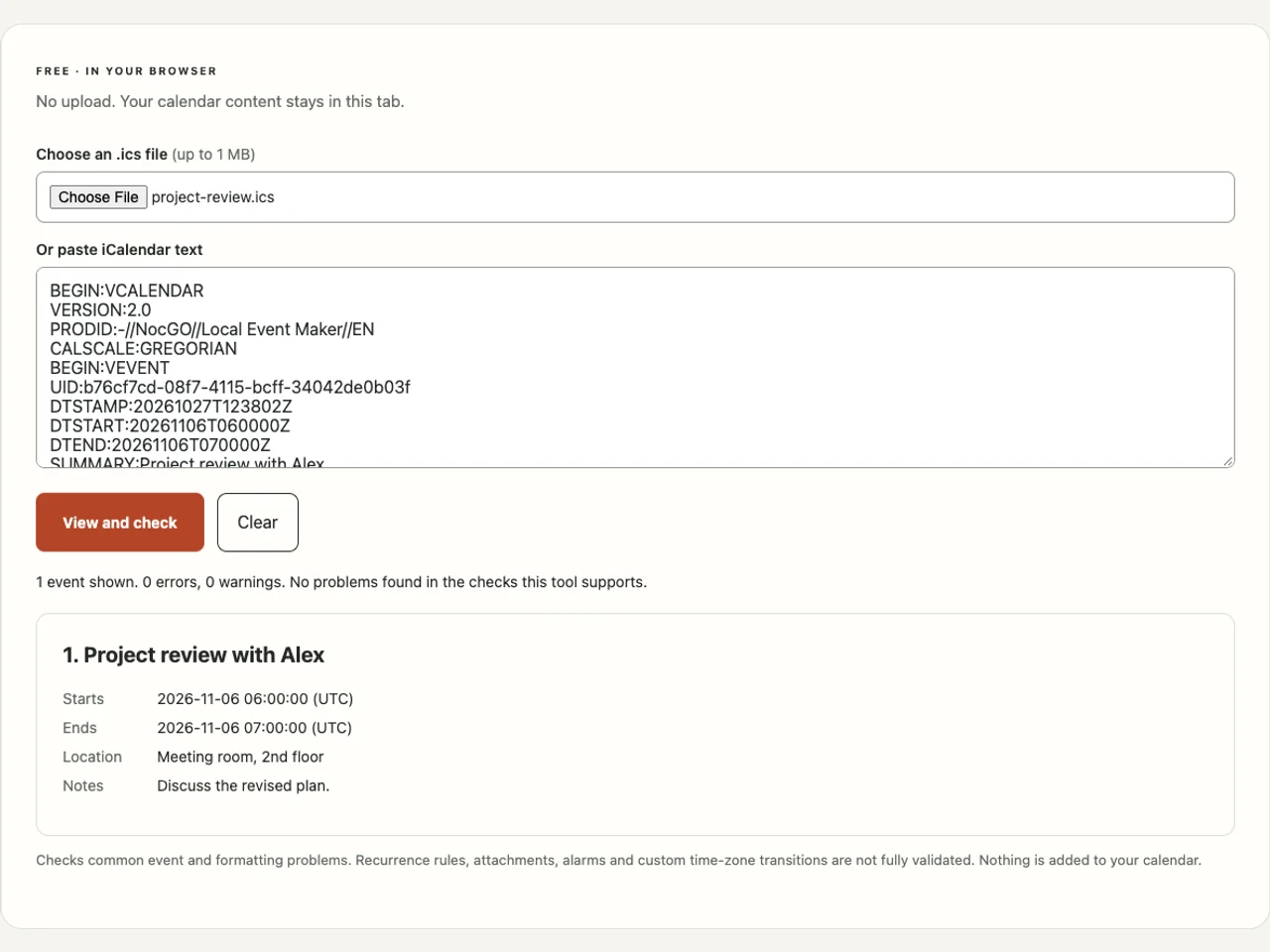
This ICS viewer shows the events inside a calendar file and checks common formatting problems. Choose a file or paste its text. It stays in this tab, and nothing is added to your calendar.
No upload. Your calendar content stays in this tab.
Choose a file or paste its contents to see the events.
Checks common event and formatting problems. Recurrence rules, attachments, alarms and custom time-zone transitions are not fully validated. Nothing is added to your calendar.
Read an ICS file in three steps
- Choose an .ics file of up to 1 MB, or paste its complete text into the box. A file should begin with BEGIN:VCALENDAR.
- Select View and check. Read each event’s title, start, end, location and notes, then inspect any errors or warnings.
- Correct the original file or ask its sender for a replacement. Clear the viewer when finished; import the event in your calendar only after reviewing it.
What this ICS viewer checks
The viewer checks the calendar container and previews event entries. It looks for VERSION, PRODID, UID, DTSTAMP and DTSTART. It flags malformed dates, repeated single-value fields and mismatched component endings. A UTC timestamp cannot also carry a local time-zone identifier.
An end time should come after the start, and all-day start and end values should use the same date type. For all-day events, the end date is exclusive: Friday through Sunday ends at Monday’s date. You may see a missing end on a valid file because an end is not required for every event.
Use the ICS file format guide to understand the fields before changing them. If you are starting from a title and a date, the iCal event maker creates a single event with the required structure.
Understand errors, warnings and unchecked features
An error identifies a problem in a supported check. Fix it before trying the import again. A warning can describe a compatibility concern or a feature outside this viewer’s scope. Warnings are useful context, not a claim that the file is unsafe or unusable.
The checker recognizes IANA time-zone names supported by your browser. It also recognizes identifiers declared in VTIMEZONE blocks. It does not evaluate those blocks’ daylight-saving transition rules. Floating local times appear as floating times; the viewer does not silently assign your device’s zone.
Recurring events can include RRULE, exception dates and overrides. The preview shows their recurrence information but does not expand or fully validate it. Tasks and journals are not rendered as events. Alarm actions and attachments are not executed. This bounded inspection is useful for reading a file, not a complete RFC compliance test.
Keep the original file
Make corrections in a copy. Preserve identifiers and recurrence exceptions. Ask the organizer for a corrected invitation if you are unsure what to change.
Read dates before adding anything
Compare the event time against the source invitation. A value ending in Z is UTC. A named zone identifies a local wall-clock time. A floating time carries neither; the importing app decides how to place it. The viewer labels these cases instead of making them look identical.
For an import problem on your phone, see open ICS on iPhone. A readable preview is not proof that the event was saved. Open the destination calendar, navigate to the event date and check the selected account before retrying. Repeated imports can leave duplicate entries.
Inspect locally, then choose your next step
The file picker reads a local file. The text box accepts pasted content. Neither path sends event titles, dates, notes or filenames to a server. The tool also avoids fetching URLs embedded in the calendar. Clearing the viewer removes its displayed content from the page; it does not erase your original file or clipboard.
If a file is too large, use the calendar application that produced it to export a narrower date range. Do not paste only half an event: preserve its enclosing calendar and matching endings. Files above 1 MB are rejected, and a notice appears if the event preview limit is reached.
The text-to-ICS tutorial provides a small editable example. Use it to understand a formatting issue, then correct the relevant field in your own file.
Frequently asked questions
Is the ICS viewer free to use without signing up?
Yes. You can inspect a file without an account, payment or calendar permission. The file is read in your browser and is not uploaded. The tool handles files up to 1 MB and previews up to 200 events. Split a larger calendar into smaller files before inspecting it.
Can an ICS validator guarantee that my calendar will import the file?
No. This tool checks common syntax, required event fields and several date problems. Calendar apps also interpret invitations, recurrence, alarms and time-zone definitions differently. A clean result means these supported checks found no problem; review the imported event in your destination calendar before relying on it.
Why does the viewer warn about a long line?
Calendar text lines should normally stay within 75 UTF-8 bytes before a line break. Longer values can continue on the next line after one leading space. Some apps tolerate unfolded lines, so this is a compatibility warning. The event maker folds its output for you.
Can the viewer open calendar subscriptions or attachments?
It reads the file you choose or the text you paste. It does not fetch subscription URLs, open attachments or follow links found in events. Recurrence information is shown without expanding every occurrence. Use the original calendar service when you need a live subscription or meeting replies.
Last updated: