iPhone guide
Screenshot to text on iPhone: copy it, then use it
For screenshot to text on iPhone, open the image in Photos and use Live Text to select and copy its words. Paste them into the app where you need them. NocGO focuses on calendar and reminder drafts; it is not a general-purpose full-text extraction tool.
How to copy text from a screenshot in three steps
- Open the screenshot in Photos. Choose a clear image with the words you need fully visible; zoom in if the text is small.
- Use Live Text, or touch and hold a recognized word. Adjust the selection handles to include the relevant words, then choose Copy.
- Open Notes, Calendar or another destination and paste the selection. Compare names, dates and addresses with the original image before relying on them.
What screenshot to text actually means on iPhone
Text extraction turns visible words into selectable characters. It does not necessarily identify what those words mean. A copied block can contain several dates, the sender’s signature, an old appointment and a revised appointment. You still decide which details belong together.
Apple’s Live Text instructions describe copying text from an image and checking availability. Live Text requires supported hardware and software; not every language or image produces the same result. If you cannot select a word, check Settings, General, Language & Region and the Live Text setting.
Keep the original screenshot until you have checked the result. A booking number with one mistaken character may look plausible while failing at check-in. When an image contains sensitive information, copy only the relevant section rather than pasting the entire screen into a shared document.
Choose a useful destination
Paste a quotation into Notes when you need its exact wording. Put a street address into the appropriate location field when directions matter. For an appointment, separate the title, date, start, end and place instead of placing everything in the event title.
A screenshot is evidence of what was on screen at that moment. It is not a live connection to the message or booking. If the sender changes the plan later, neither a copied note nor a previously created calendar event necessarily updates itself.
Why extracted text alone is not enough
Copying saves retyping, but it does not finish scheduling. “Friday at 3” still needs a date, an afternoon or morning interpretation, and sometimes a time zone. “Send the slides before we meet” describes a task as well as a meeting.
A chat can also include a correction after the original suggestion. Copying both lines gives you more text without selecting the final agreement. Read the surrounding conversation before saving a calendar entry. If a date is unresolved, keep a note rather than inventing one.
Our chat to calendar example shows how context changes the event you should create. The key distinction is practical: copy the text when you need the words; organize the details when you need an action. A calendar draft should still be checked before it is added.
From extracted text to a calendar event
Choose a workflow based on the amount of interpretation required. For one clear appointment, paste its title into Calendar and enter the confirmed start, end and location. Apple’s newer supported system features may offer direct event actions. Their availability depends on the device, system, language and region.
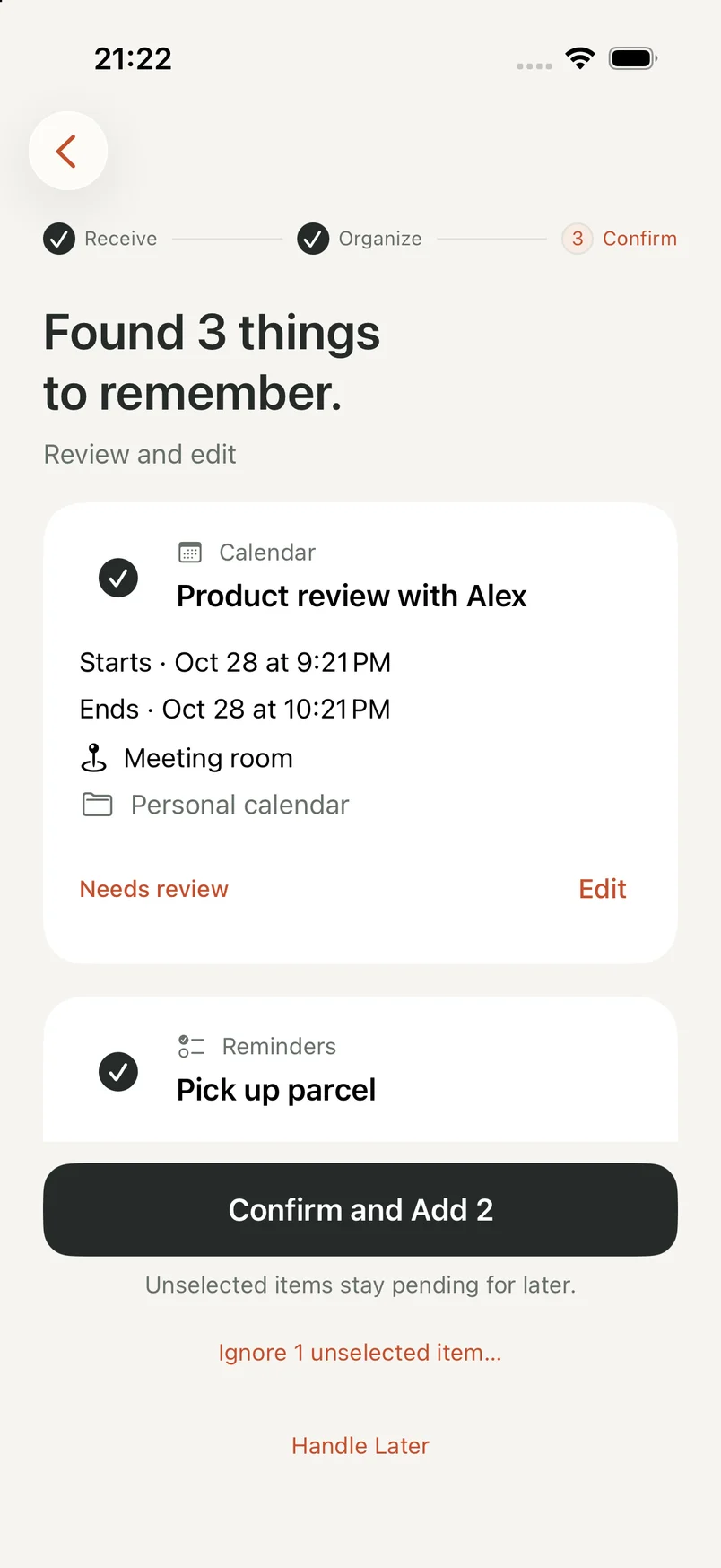
NocGO takes a different input path: you select a screenshot, optionally add context, and submit it for cloud recognition. It presents calendar or reminder drafts for review. You can edit details and select which items to add. It does not promise an entirely offline screenshot workflow.
Follow screenshot to calendar on iPhone for the manual and assisted routes. If your main question is which app should hold the finished event, compare the calendar apps for iPhone. Capturing an appointment and managing your week are related but separate jobs.
The app preview below illustrates that destination: editable event and reminder drafts. It does not demonstrate copying a full screenshot transcript. Choose a dedicated text-copying method when preserving every line is your actual goal.
When you should use Live Text instead
Use Live Text when you want an address, quotation, short passage or code exactly as shown. You can check the selected characters immediately and paste them into your chosen destination. There is no need to turn every useful piece of text into a dated event.
For dense tables, several languages or a blurred source, inspect the copied output carefully. A cleaner screenshot may help more than repeatedly trying the same selection. Avoid using a visually plausible result as proof that all numbers were captured correctly.
If the image describes several actions, a calendar-and-reminder draft workflow may reduce the field sorting you do manually. That is a workflow distinction, not a measured speed or accuracy ranking. We have not run a controlled comparison between Live Text and NocGO, and this guide makes no such claim.
Frequently asked questions
Can I convert a screenshot to text without another app?
Yes, on an iPhone that supports Live Text. Open the image in Photos, select the recognized words and copy them. Apple lists the device, system and language requirements in its support guidance. If text selection is unavailable, check those requirements and try a clearer image before changing your workflow.
Is screenshot-to-text copying free on iPhone?
Live Text is a built-in feature on supported iPhones and does not require buying a separate copying tool. You do not need to join the NocGO list to follow this guide. A destination service may have its own account or paid features, so check those separately when deciding where to paste.
Can NocGO copy every word from my screenshot?
NocGO is designed to prepare calendar and reminder drafts from submitted content. It does not provide a general full-text extraction and copy screen. Use Live Text when you want the original words, a quote or a reference number. Use a draft workflow when you want to review an event or task.
Why does copied text contain the wrong date or a missing character?
Recognition can misread small, cropped or low-contrast text. A line break may also separate a date from its context. Compare the copied result with the image, especially for names, booking codes and numbers. If the screenshot contains an old message, resolve relative dates using that message’s date rather than today.
Last updated: